
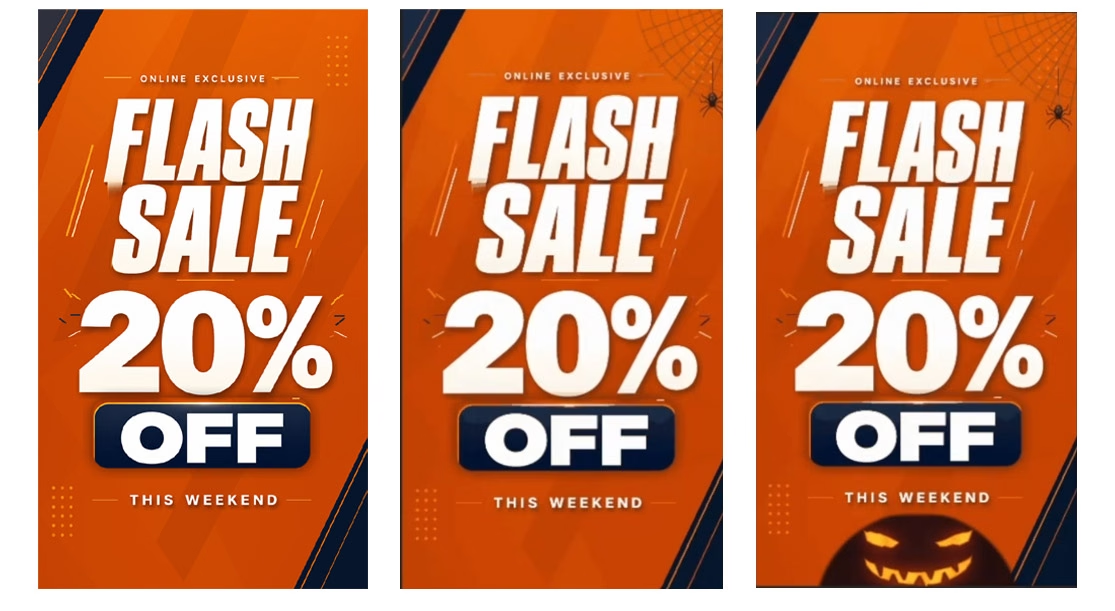
Can you make animated ChatGPT GIFs without knowing Python or writing a single line of code? Yes, and I decided to see just how far I could push it. What started as a pretty basic Flash Sale animation eventually turned into a Halloween promotion featuring a descending spider and a sinister glowing jack-o’-lantern. Things escalated a little, lol.
In this ChatGPT GIF tutorial, I’ll show you how I created an animated graphic, changed its motion, resized it for social media, improved its design with a reference image, and added new animation effects. I didn’t need to write any code myself, and you won’t either. Which is great, because I know nothing about Python or coding, lol.
Can ChatGPT Really Create Animated GIFs?
Yes! ChatGPT can create animated GIF files by writing and running Python code behind the scenes, provided your conversation has access to code execution and the necessary libraries. You describe what you want, and ChatGPT handles the technical work.
For this project, ChatGPT used Python and a library called Pillow, but don’t let that freak you out. You only need to know how to prompt to make this work while ChatGPT does all the heavy lifting. You can learn more about how this works in OpenAI’s official ChatGPT data analysis documentation. If you’re curious about the technical side, Pillow’s documentation also explains how it handles animated GIF frames, timing, and looping.
The important part is that you don’t need to learn Python to follow this tutorial. I certainly didn’t, and I managed to make a spider crawl down a web without accidentally destroying the entire animation. That’s progress!
Create Your First Animated ChatGPT GIFs Without Coding Skills
I started with a simple idea. A promotional GIF advertising a fictional 20% off Flash Sale would be the first test. I needed moving text, a few decorative effects, and a continuous loop that I could use on a website or social media. In a fresh ChatGPT conversation, I entered the following prompt.
Prompt 1: Create the Flash Sale GIF
“I want to create a professional animated GIF for a fictional online store promotion. I have no coding experience, so I want you to handle all the technical work for me. Create a stylish, modern FLASH SALE promotional graphic with these specifications:
Size: 800 × 450 pixels
Duration: approximately 4 seconds
Format: animated GIF that loops continuously
Dark navy background (#101A32)
Burnt orange (#B84200) and white accents
Bold, professional typography
Clean, modern design suitable for an online store
Animate the words “FLASH SALE” with a smooth entrance. Reveal a large “20% OFF” with eye-catching movement, add subtle decorative accents, and finish with “THIS WEEKEND” beneath the offer. Make the animation loop smoothly.
Use Python and an available library such as Pillow to create the actual GIF file. Run the code yourself. Do not provide code for me to run or direct me to another website.
Keep the file under 5 MB if possible, and provide a downloadable animated GIF along”
ChatGPT Creates the Animated GIF
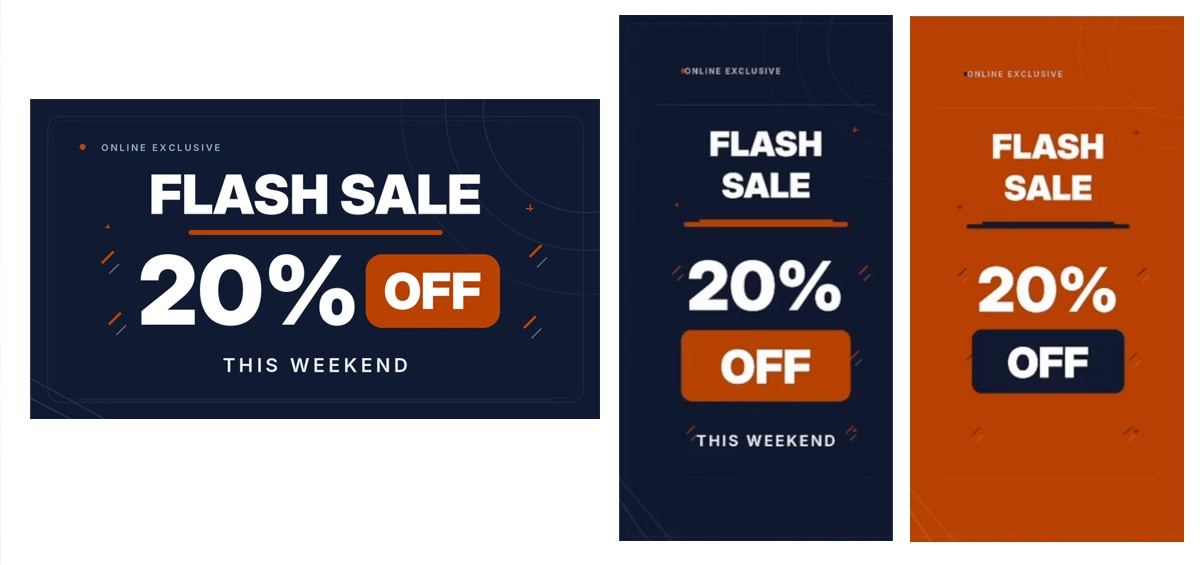
I used my actual website colors for the design because I wanted to see how well ChatGPT could follow specific branding instructions. After a couple of minutes, it gave me a downloadable GIF and a static PNG preview.
The animation worked, and the file stayed within my requested size limit. Was it the most impressive animation I’d ever seen? Not even close, lol. But I had a working GIF without writing any code, so I wanted to see what else I could do. My first adjustment was simple. I wanted the “20% OFF” text to make a more dramatic entrance.
Prompt 2: Add a Bouncing Text Effect
“I like the animation, but I’d like the 20% OFF text to have a more dramatic entrance. Make it pop into place with a smooth bounce while keeping the rest of the design consistent. Please regenerate the downloadable GIF.”
ChatGPT handled the change, although the difference wasn’t particularly dramatic. That’s something worth remembering when you work with AI. Just because it follows your instructions doesn’t mean the result will blow you away. But I wasn’t finished experimenting. I wanted to see whether I could change the entire layout without rebuilding the animation myself.
Resize ChatGPT GIFs for Social Media
The original animation used an 800 × 450 landscape layout. That worked fine, but I wanted a vertical version that would fit a 9:16 social media format. Instead of trying to recreate it from scratch, i simply wrote a prompt and asked if ChatGPT could do this for me based on the GIF it just created.
Change ChatGPT GIFs to a Vertical Format
“I want to recreate the GIF, but have everything fit and formatted for a 9:16 ratio so I can use it for social media.“
ChatGPT recreated the animation in a vertical format and repositioned the design elements to fit. I didn’t have to manually adjust the text, change the canvas, or figure out how to rewrite the Python code. Next, I tried swapping the colors.
Swap the Brand Colors in an Existing GIF
“I like this, but for a little variety, I’d like to swap the navy color and the orange. Wherever there’s navy, make it orange, and wherever there’s orange, make it navy. Keep the white text exactly the same.“
It worked! ChatGPT switched the navy and orange while keeping the white text and overall layout intact without a hitch! These two changes were among my favorite parts of the experiment. They showed how easily I could create variations for different platforms or branding needs by simply describing what I wanted.
Improve ChatGPT GIFs With Reference Images
At this point, I had a functioning animated GIF, but the design itself still looked fairly basic. I don’t do well with basic! So I decided to try something different. ChatGPT had already given me a static PNG of the animation, so I uploaded that image back into the conversation and asked ChatGPT to redesign it as a more professional-looking promotional graphic.
Redesign a Static PNG for ChatGPT GIFs
“Using my uploaded reference PNG, create a much more polished, professional-looking Flash Sale graphic in a vertical 9:16 format.
Preserve the original wording: “ONLINE EXCLUSIVE,” “FLASH SALE,” “20%,” “OFF,” and “THIS WEEKEND.”
Keep the orange, navy, and white color palette, but significantly improve the typography, spacing, hierarchy, and overall visual impact.
Make “20% OFF” the main focal point, with bold, dramatic “FLASH SALE” lettering and smaller supporting text.
Use modern, high-impact typography similar to Bebas Neue or Anton for the headline, a large bold sans-serif for the discount, and a clean font similar to Montserrat or Poppins for supporting text.
Add subtle geometric accents, professional spacing, and strong visual contrast. Keep the design clean rather than cluttered.
Do not animate anything yet. Create a finished static PNG only.“
Now THAT was an improvement! The redesigned graphic looked much more like something I’d actually use in a promotion. But a better static image wasn’t the end of the project. I wanted to see whether ChatGPT could recreate that design with moving text and graphics, too.
For this step, I asked ChatGPT to use the improved PNG as a visual reference and recreate its individual elements as an animation.
Animate the Improved Design PNG
“Use the improved promotional PNG we just created as the reference for a new animated GIF.
Recreate its design faithfully, preserving the text, colors, typography, and layout. Animate the individual elements rather than simply zooming or moving the entire image.
Make FLASH enter from the left and SALE enter from the right. Have “20%” pop dramatically into position, followed by an animated reveal of “OFF.” Add subtle movement to the decorative accents and reveal “THIS WEEKEND” near the end.
Make the animation approximately 4–5 seconds long, vertical 9:16, and continuously looping.
Use Python to create the actual downloadable GIF. Handle all technical work yourself and provide a static PNG preview as well.”
This generation took longer than the earlier adjustments, but it was so worth it. ChatGPT recreated the improved design with moving text and gave me another downloadable GIF.
There’s an important distinction here. A static PNG is a flattened image, so ChatGPT has to recreate or isolate individual elements to animate them independently. That process won’t always work perfectly, especially with complicated graphics. For our Flash Sale design, though, the result worked surprisingly well without any issues.
Add New Animated Effects to Existing ChatGPT GIFs
This is where the project started getting a little out of hand. Halloween was approaching, and I’d noticed a spiderweb animation elsewhere while working in ChatGPT. Naturally, I wondered whether I could add something similar to my Flash Sale GIF without changing everything I’d already created. The game was afoot!
Add a Spiderweb and Animated Spider
“Take the existing animated Flash Sale GIF and add a realistic spiderweb to the upper-right corner.
Create a small, realistic spider hanging from a single silk strand. Have the spider slowly descend from the web, pause briefly, sway naturally, and climb back up.
Keep the spiderweb stationary and make the spider’s movement smooth.
CRITICAL: Preserve every existing element of the GIF, including the text, fonts, colors, layout, frame timing, and animations.
Use Python to add the spiderweb and spider as animated overlays rather than recreating the entire graphic. Keep the original dimensions and continuous looping. Export a new downloadable GIF.”
It worked! The spider crawled down from the web and returned to its starting position while the original animation continued playing. I wasn’t completely happy with the web color, though, because it blended into the orange background. So I simply asked ChatGPT to make the web dark gray, and it regenerated the animation with the improved contrast. That’s another advantage of working this way. When something doesn’t look quite right, I can ask for a specific adjustment instead of rebuilding the entire project.
One Final Halloween Effect
Of course, I couldn’t stop there. I decided the bottom of the graphic needed a sinister jack-o’-lantern face. Tater Tot insisted on it! My final prompt asked ChatGPT to add sharply angled glowing eyes and a wicked, jagged grin. I wanted the face to gradually illuminate with flickering orange-yellow candlelight while preserving the existing spiderweb, spider movement, and promotional animation.
The Spooky Prompt
“CRITICAL: Preserve everything in the existing GIF exactly as it is. Do not change the text, fonts, colors, layout, spiderweb, descending spider, decorative elements, or existing animations. Add this new effect as an animated overlay using Python.
New effect: Sinister glowing jack-o’-lantern face
At the bottom of the animation, create a spooky jack-o’-lantern face emerging from the darkness.
Appearance:
- Two sharply angled, menacing triangular eyes with irregular carved edges.
- A wide, wicked grin filled with jagged, uneven triangular teeth.
- The eyes and mouth should look like actual cutouts in a carved pumpkin, not cartoon graphics.
- A realistic, fiery orange-yellow glow should shine through the openings, as though a candle is burning inside.
- Add subtle darker amber and red tones for depth.
- The face should feel sinister, mysterious, and slightly unsettling.
- Keep the pumpkin itself mostly hidden below the bottom edge of the frame. The glowing eyes and mouth should be the primary visible features.
- Keep the effect below the promotional text without obscuring anything.
Animation sequence
- The bottom of the screen begins dark, with the pumpkin face invisible.
- A faint orange flicker gradually reveals the two menacing eyes.
- The jagged mouth slowly illuminates, revealing the sinister grin.
- The eyes and mouth pulse with an irregular, realistic candlelight flicker.
- The glow intensifies briefly, creating a dramatic Halloween moment.
- The light dims, flickers once more, and fades back into darkness.
Technical requirements
- Use Python to add this effect to the existing animated GIF.
- Preserve the original 9:16 canvas dimensions.
- Keep the existing frame timing and all original animations.
- Do not flatten the original GIF or replace its moving elements with static images.
- Synchronize the new effect with the existing animation so everything loops smoothly.
- Use soft glow effects, gradients, and realistic lighting where possible.
- Avoid simple flat triangles or cartoon-style shapes.
Export the finished result as a downloadable animated GIF.
The goal is a creepy, cinematic jack-o’-lantern reveal that complements the descending spider without interfering with the original FLASH SALE animation.
And just like that, my ordinary Flash Sale graphic became a miniature Halloween production. It was completely unnecessary, which naturally made me want to do it even more, lol. The useful takeaway is that ChatGPT successfully added multiple animated effects to an existing GIF without forcing me to rebuild everything from scratch.
What Else Can You Animate With ChatGPT?
This approach isn’t limited to Flash Sale graphics or Halloween decorations. You could experiment with animated logos, countdown timers, rolling numbers, sales statistics, line graphs, progress indicators, and other simple motion graphics.
I’ve also experimented with an animated revenue-growth video that combines rolling dollar amounts with a moving graph. Different animations may require different Python libraries, but the basic idea remains the same. Just describe what you want and let ChatGPT handle the coding.
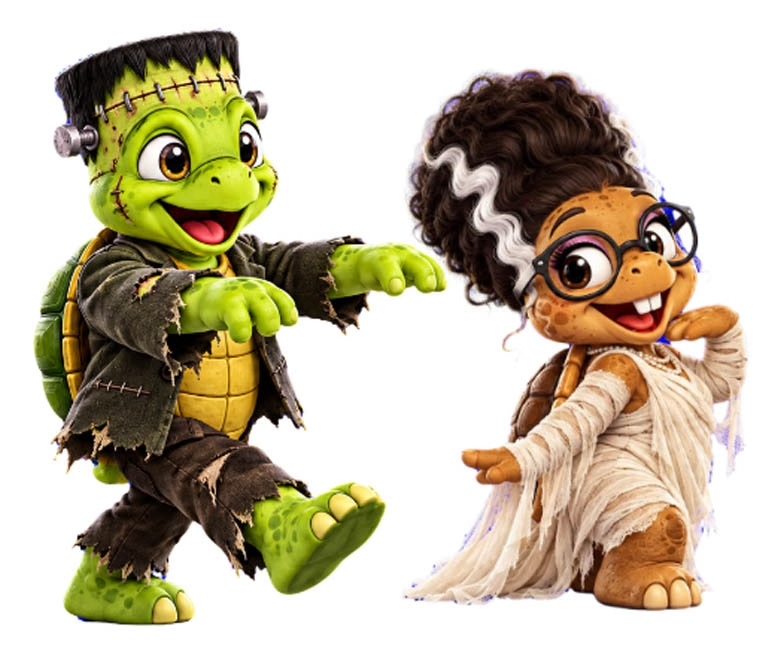
For more complicated AI video projects involving realistic character movement or cinematic scenes, you’ll probably want a dedicated AI video generator. I’ve explored that approach in my Kittl AI Video Tutorial, where I turned a still image into a Halloween ghost scene.
Frequently Asked Questions
Can I make animated GIFs with ChatGPT for free?
Possibly, depending on which features your ChatGPT account currently supports. You need access to a conversation that can run Python and generate downloadable files, and usage limits may apply. Check what your plan offers before assuming every version of ChatGPT can complete the same workflow.
Can ChatGPT turn an animated GIF into an MP4 video?
Yes, when the necessary file-processing tools are available. You can ask ChatGPT to convert an existing GIF into an MP4 or create an animation directly as a video file. MP4 is often more practical for YouTube, Reels, and other video-focused platforms.
Can ChatGPT animate an actual person or character in a photograph?
Python can add movement such as zooms, fades, and other effects to an existing image, but that isn’t the same as generating realistic body movement or facial performances. For a person walking, talking, or performing complicated actions, an AI image-to-video generator is usually a better choice.
Can I use ChatGPT GIFs on my website?
Yes, but pay attention to file size. Large GIFs can slow down a webpage, especially when you include several animations. Keep the dimensions reasonable, compress the files when possible, and consider video or animated WebP alternatives when performance matters.
Do You Need to Know Python to Make ChatGPT GIFs?
Nope! This project started with a simple question: could I create animated GIFs with ChatGPT without knowing how to code? By the end, I’d created an animated promotion, changed its layout and colors, improved its design, and added a few rather unnecessary Halloween creatures. The thing I enjoyed most wasn’t any particular effect. It was being able to keep experimenting and adjusting things using ordinary instructions. Some changes worked better than others, but I didn’t have to learn Python to find out what was possible.
If you’d like to explore more ways to use AI for creative projects and online business, check out AI Dominance. It’s a free community that I help moderate, and you’ll find tutorials, discussions, and other people experimenting with AI. That link is my referral link, so tell them Mike sent you!
And now I’m curious: what else would you like to see me animate with ChatGPT? Leave your ideas in the comments below. I’m planning more experiments, and your suggestion might become the next one. Until next time, happy creating!