
Kittl has a new video editor, and I couldn’t resist taking it for a test drive! The tool lets you split AI-generated videos, change playback speeds, adjust audio, rearrange clips, and combine multiple videos without leaving Kittl. Better yet, none of the editing or exporting operations I tested cost me any additional AI tokens. I believe this is just the beginning of what they have in store! Let’s check it out!
Last tested: October 25, 2026
Now, before you throw your favorite editing software out the window, there are some limitations worth knowing about. Kittl’s new editor is pretty basic right now. Several features I’d normally expect aren’t available in the version I tested. However, the platform has already indicated that additional editing functionality is on the way. This is definitely a tool I will keep an eye on.
I discovered the feature while working on animations for my YouTube videos. Naturally, I abandoned what I was supposed to be doing and started clicking buttons. Apparently, I needed another project, lol! Thanks, Kittl! I decided to give the Kittl Video Editor a completely unscripted test, using an existing animation I had. I wanted to see what worked, what didn’t, and whether the finished video would export correctly. Here’s what I discovered and what I’d like to see Kittl add in future updates.
What Is the Kittl Video Editor?
The Kittl Video Editor is a built-in editing tool that lets you modify and combine AI-generated video clips directly inside Kittl. You can split videos into separate sections, adjust individual clip speeds and volume levels, rearrange footage on a timeline, and export the finished project as an MP4. This is a useful addition to Kittl’s existing AI video generation tools, in my opinion. It gives creators more control over videos they’ve already generated. Instead of downloading a clip and immediately opening another program to make adjustments, you can now handle some basic editing tasks without leaving the platform.
I’ve previously explored Kittl’s AI video generation capabilities in my Kittl AI video tutorial. I walk through creating videos using its AI tools in that one. This time, I wanted to concentrate on what happens after the video generation finishes.
What Can You Actually Do With the Kittl Video Editor?
During my October 25, 2026 test, I successfully split footage into smaller clips, adjusted their playback speeds, changed individual audio volumes, rearranged sections, combined existing AI videos, and exported the finished project. The editor also includes delete, undo, and redo controls, making it relatively easy to experiment without completely destroying your work.
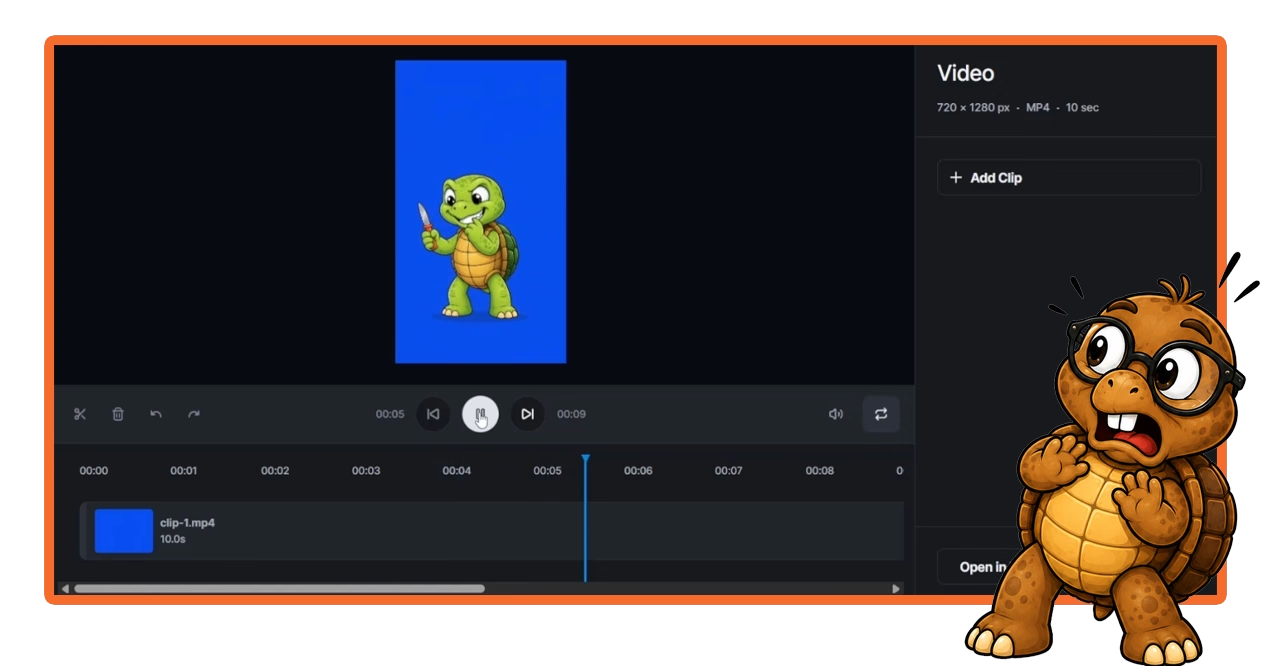
For this test, I used an existing animation of Sheldon. He’s running around with a pumpkin carving knife and laughing like a maniac. I specifically chose that video because it already contained audio. I wanted to find out how the editor handled sound when I started chopping up the footage. Nothing says professional software testing quite like a deranged cartoon turtle brandishing a pumpkin carving knife. That turtle needs some adult supervision!
How Do You Access the Kittl Video Editor?
I accessed the Kittl Video Editor by selecting an existing AI-generated video and clicking the Edit Video option. That opened an editing interface with a video preview, playback controls, and a timeline displaying the footage. The Kittl Video Editor tab is also available at the very top of the Kittl home screen, alongside

The layout is fairly straightforward, especially if you’ve used a basic video editor before. You’ll find controls for splitting and deleting clips, along with undo and redo options. Additional settings appear when you select individual sections of the timeline. An Add Clip button also lets you bring other Kittl-AI-generated videos into your project. I appreciate that Kittl hasn’t made the interface unnecessarily complicated. Sometimes it’s good to shorten a clip or remove an annoying sound without spending all day learning the buttons. Of course, we’ll also get into some features that I think the editor could benefit from having.
How Do You Split and Rearrange Video Clips in Kittl?
To split a video in Kittl, position the timeline playhead where you want the cut and click the scissors icon. The editor divides the footage into separate clips, allowing you to adjust individual sections without changing the entire video. I divided my Sheldon animation into three parts. The first showed him running in, the middle captured his laugh, and the final section showed him running away. This gave me three sections that I could edit independently while keeping everything in the same project.
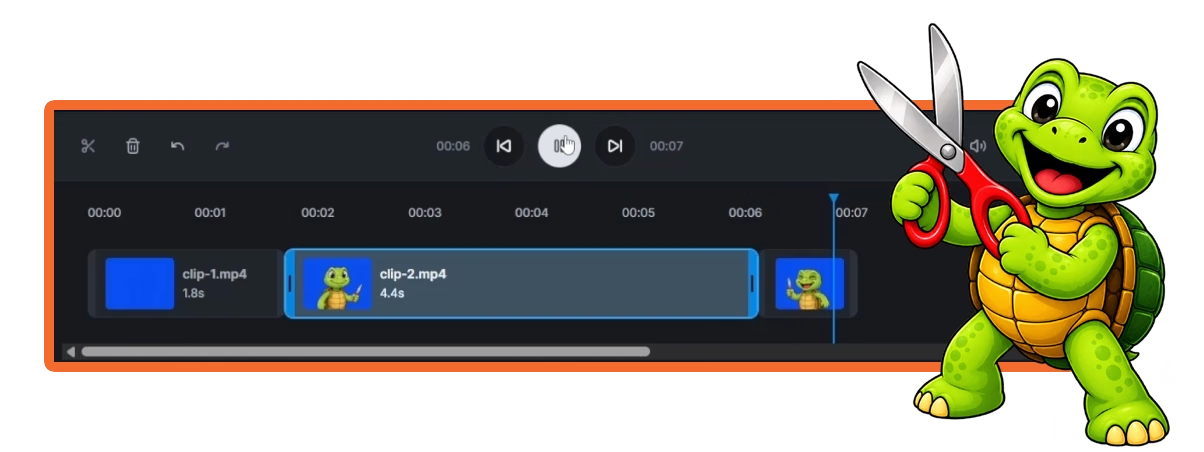
The timeline displays the duration of each section, and those durations update when you change a clip’s playback speed. I found this particularly helpful because it made it easy to see how much time I was removing from the overall animation. This type of editing could also be useful for AI-generated product videos. Sometimes the AI creates a great product reveal but spends entirely too long getting there. Rather than regenerating the entire video and spending additional tokens, you can split the footage and adjust the sections that need work.
Can You Rearrange Video Clips on the Kittl Timeline?
Yes, you can drag video clips around the Kittl timeline to change their order. I tested this by moving sections of my animation and watching how the editor rearranged them. However, I couldn’t freely pull clips apart and leave empty spaces between them the way I might in a more advanced timeline editor. It worked like a series of connected clips rather than a full editing workspace with multiple tracks and open areas.
You can also select a clip and delete it without removing the rest of the project. The undo and redo controls also worked during my testing. It’s always a welcome feature when you’re experimenting with software you haven’t used before. Especially when your preferred testing method involves clicking something first and figuring out what it does afterward.
Can You Speed Up or Slow Down Videos in Kittl?
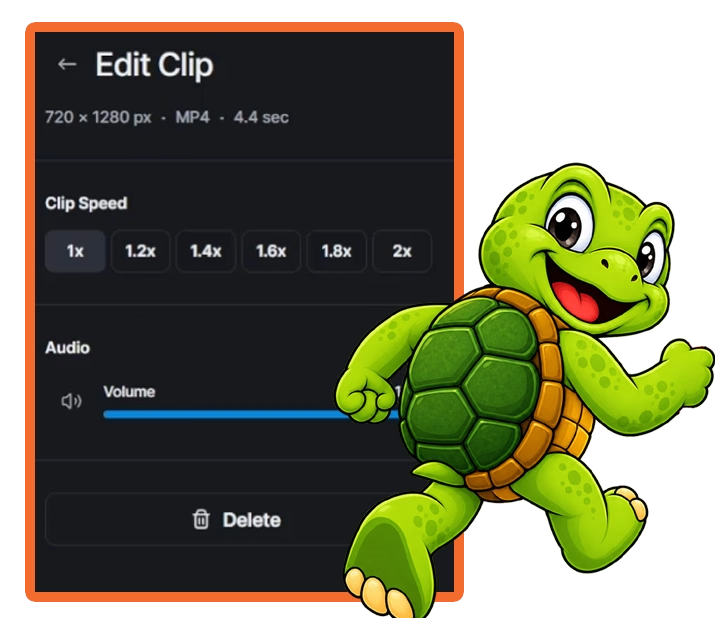
Yes, Kittl’s Video Editor lets you adjust the playback speed of individual video clips. By splitting a longer video into sections, you can apply different speeds to specific moments instead of changing the entire animation. This was great because AI-generated videos sometimes include movements that take longer than necessary. The animation itself might look great, but a character can spend several seconds wandering into position before anything interesting happens.
With Sheldon, I wanted his entrance and exit to move faster while keeping his laugh at its original speed. I split the footage into three sections, increased the first and last clips to 2× speed, and left the middle section alone. The editor automatically shortened the faster sections while maintaining the original timing of the center clip. That gave me a quicker entrance, a normal-speed laugh, and a faster exit without requiring another AI generation.
Does Changing Video Speed Also Change the Audio?
Yes, changing a clip’s speed also changes the playback speed of its original audio. During my test, the audio in the sections I accelerated played faster, while the audio in the unchanged middle section maintained its normal speed. That’s something worth remembering when you’re editing videos with dialogue, music, laughter, or sound effects. Speeding up a visual sequence might produce the movement you want, but the audio can sound like an overly caffeinated chipmunk. Or a turtle in my case. Fortunately, I found a simple way to work around this issue using the editor’s individual clip volume controls.
Can You Remove or Edit Audio in the Kittl Video Editor?
Yes, the Kittl Video Editor allows you to adjust audio volume, including muting individual video clips. Although I couldn’t find an option to detach the audio, the existing volume controls gave me more flexibility than I expected. When I first started testing, I used the main audio toggle to mute the video. That worked, but it muted the entire project rather than just the individual section I had selected. I wanted something more specific because Sheldon’s laugh needed to stay intact while the audio from his entrance and exit disappeared.
After experimenting with the individual clip settings, I discovered that I could adjust each section’s volume independently. This turned out to be one of the most useful features I found during the entire test.
How Do You Mute Only Part of a Video in Kittl?
To remove audio from a specific section, start by splitting the video where you want the sound to change. Select the section you want to mute, open its volume control, and lower the volume to 0%. Then select any sections where you want to keep the original sound and leave their volume at your preferred level.

That’s exactly what I did with Sheldon. I muted the faster entrance and exit clips while leaving his laugh at normal speed and full volume. My laptop was lagging pretty badly during the recording, so the timeline preview wasn’t always cooperating. But that was on me. Fortunately, the downloaded MP4 played correctly. Sheldon ran into the scene quickly without sound, laughed at normal speed with audio, and then ran away at the faster speed without sound. That confirmed the editing changes worked, even though my laptop apparently needed a nap.
Can You Separate Audio From Video or Add Your Own Music?
I couldn’t find a way to detach audio from a video or import separate sound files in the editor. The individual volume controls work well for basic adjustments for audio already in the clip, but they don’t provide the same flexibility as independent audio tracks.
For example, I’d love to upload voiceovers, music, or sound effects and place them wherever I wanted on the timeline. I’d also like the ability to separate existing audio from a clip so I could cut, move, or adjust it without affecting the video itself. Those features would make the editor considerably more useful for creators who want to finish an entire video inside Kittl. For now, the individual volume controls provide a practical workaround when you only need to remove sound from particular sections.
Can You Combine Multiple AI Videos in Kittl?
Yes, the Kittl Video Editor lets you combine multiple videos from your My AI Creations library. You can use the Add Clip button to select another AI-generated video and place it on the existing timeline. I tested this by adding a second video to my Sheldon animation. The editor attached it to the end of the project, and I could play the combined footage as one continuous sequence. The clips didn’t make much sense together because I hadn’t prepared anything specifically for the experiment, but the feature worked.
This could be particularly helpful when creating longer AI-generated videos from several shorter scenes. Rather than trying to make an AI model handle every movement in one generation, you could generate the scenes separately and combine them afterward. That’s especially useful for projects involving product demonstrations, promotional videos, and other content where you might want several different camera angles or scenes. I’ve explored similar ideas in my Kittl AI product video tutorial.
Can You Upload Your Own Videos Into the Kittl Video Editor?
I couldn’t upload an external video through the Add Clip interface during my test. The selection window only displayed videos from My AI Creations, even though Kittl has a separate Uploads library elsewhere in the platform. That’s a distinction I think Kittl should address as it develops the editor. If I’ve already uploaded a video or other asset to my Kittl account, I’d like to be able to access it without having to recreate anything through the AI generation tools.
Direct video uploads would also make the editor more useful for combining AI-generated footage with screen recordings, existing product clips, or other videos created outside Kittl. Right now, the workflow I tested focuses on videos already generated within the platform.
Can You Add Still Images to the Kittl Video Editor?

I couldn’t add a still image to the Kittl Video Editor, even after creating one with Kittl’s own Creative Agent. I tested this separately because I wanted to know whether the editor could handle a static image alongside AI-generated videos. After my original video test, I went back into Creative Agent and created a still-image call to action. I then returned to the video editor, clicked Add Clip, and checked My AI Creations to see whether I could select the image. Unfortunately, the selection window only displayed videos. My newly generated image didn’t appear as an available option, and I couldn’t find another way to add it to the timeline.
I’d really like Kittl to support still images, particularly for branded end screens, product photography, promotional graphics, and calls to action. For example, adding a static image to the end of a greeting card video mockup could provide a clean closing frame with additional product information. Ideally, you’d be able to select an image, choose how many seconds it should appear, and position it anywhere on the timeline. That would eliminate another reason to move a project into a separate video editor.
Can You Change Video Resolution or Aspect Ratio in Kittl?
I couldn’t change the video resolution or aspect ratio from the Kittl Video Editor’s export screen during my test. The export interface displayed the existing project dimensions without offering additional sizing controls. My original Sheldon animation used a vertical 9:16 format, and the finished MP4 retained those dimensions. The export worked correctly, but I didn’t have an option to turn that vertical video into a horizontal 16:9 version or select a different output size.
For now, I recommend generating your original footage in the format you intend to use. If you’re creating content for YouTube Shorts or social media posts, a vertical 9:16 video makes sense. If you’re working on a traditional horizontal YouTube tutorial, you’ll generally want a 16:9 format instead. YouTube’s official documentation explains video resolutions and aspect ratios, which can help when deciding how to prepare footage for different viewing formats.
I’d eventually love to see Kittl introduce cropping, reframing, and more flexible export settings. Those additions could make it easier to repurpose the same AI-generated footage for multiple platforms without starting another project.
Does the Kittl Video Editor Cost AI Tokens?

None of the editing operations or exports I tested on October 25, 2026, deducted any AI tokens from my account. That included splitting footage, changing playback speeds, adjusting volume, rearranging clips, combining existing videos, and downloading the finished MP4. I think that’s one of the biggest advantages of the feature so far. If you’ve already spent tokens generating videos, being able to make basic adjustments without additional charges gives you more opportunities to get the result you want from those existing assets.
However, there’s an important difference between editing footage you’ve already created and generating brand-new AI video content. Kittl’s official video documentation explains its AI video generation tools, which can consume tokens depending on the generation settings and models involved.
I can’t guarantee that every editing feature will always remain free of additional token charges, particularly as Kittl expands the editor. But during my initial testing, the editing and exporting operations themselves didn’t cost me anything. And considering how quickly AI video experiments can chew through a token balance, I’ll happily take that little victory.
Is Kittl Adding More Video Editing Features?
Kittl’s interface indicates that additional editing functionality is coming, although I haven’t confirmed exactly which features the company plans to introduce. During my test, I clicked an option labeled Open in Editor to see whether it offered a more advanced editing workspace. Instead, Kittl displayed a message explaining that it was putting the finishing touches on the feature. The message also offered to notify me when it becomes available, so naturally, I signed up.
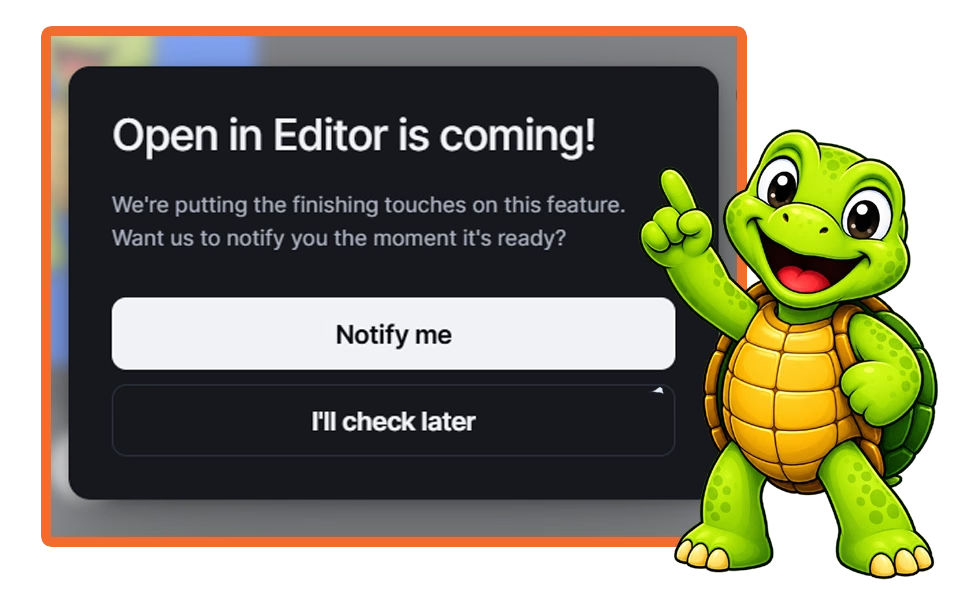
That doesn’t tell us what tools the expanded editor will eventually include, but it gives me a good reason to revisit the feature as Kittl continues developing it. I plan to test meaningful updates and expand this article as new capabilities become available.
What Features Would I Like Kittl to Add to Its Video Editor?
I’d love to see Kittl introduce video transitions and effects, including crossfades, dissolves, fade-ins, and fade-outs. Those basic controls would make it easier to combine AI-generated scenes without abrupt cuts, while additional animation tools such as keyframes could provide more creative flexibility. Expanded audio editing is another priority. I’d like to upload my own music, voiceovers, and sound effects, detach audio from existing videos, and work with separate audio tracks. Direct access to uploaded videos, still images, and other Kittl assets would also make the editing workflow considerably more practical.
I’d also love green-screen and blue-screen effects, layered graphics, picture-in-picture tools, animated text, and tighter Brand Kit integration. Since I regularly create animated turtle mascots for my YouTube videos, the ability to remove their blue backgrounds directly inside Kittl would save me an additional editing step. At the moment, I use Microsoft Clipchamp for that part of my workflow, but being able to do it in Kittl Video Editor would help me out a lot. These turtles cause enough trouble as it is, lol.
These are features I’d personally like to see, not confirmed additions to Kittl’s development plans. I’ll update this article when I can actually test new capabilities rather than speculate about what might be coming.
Is the Kittl Video Editor Worth Using?
Yes, I think the Kittl Video Editor is already worth trying if you regularly create AI videos and only need basic editing controls. The ability to split clips, change playback speeds, adjust individual audio volumes, and combine existing footage gives you more control without immediately moving everything into another program. My favorite part of the test was being able to change the speed of Sheldon’s entrance and exit while preserving his laugh at normal speed. That’s exactly the kind of small adjustment that can improve an animation without requiring another generation.
The editor isn’t a complete replacement for dedicated video editing software yet, at least not for my workflow. I still need additional tools for things like layered graphics, chroma-key effects, imported audio, and more complicated editing projects. However, I don’t think Kittl necessarily needs to become another full-blown video production program to make this feature valuable. Sometimes the ability to make a few quick changes before downloading a video is exactly what a creator needs.
I’m interested to see how far Kittl takes the editor, particularly as its AI video generation capabilities continue evolving. And judging by how often I’ve been distracted by new features lately, there’s a pretty good chance I’ll be testing the next update whether I planned to or not.
Want to Try Kittl’s AI Video Tools Yourself?
I’ve been using Kittl for everything from AI-generated animations and product videos to mockups and other creative projects. What I enjoy most is exploring how these tools work in real situations, learning from my mistakes, and creating funny turtle animations for my videos, lol.
If you’re interested in trying Kittl’s creative tools for yourself, you can explore its available features, experiment with AI-generated content, and see how they fit into your own projects. I regularly share tutorials and firsthand tests here on the website, so you’ll also find plenty of examples of what I’ve been creating.

Affiliate disclosure: This is an affiliate link. If you make a qualifying purchase through it, I may earn a commission at no additional cost to you. My opinions and testing results remain my own.
FAQs About the Kittl Video Editor
Is the Kittl Video Editor Free to Use?
During my October 24, 2026 test, none of the editing operations or the MP4 export deducted AI tokens. However, generating new AI video clips can still cost tokens. I tested the new Kittl Video Editor using a Pro paid account (the first tier after Free), but I haven’t confirmed whether free accounts have access to the same editing features. Kittl hasn’t clearly documented the new editor’s plan requirements yet, so I’ll update this section when I can verify them.
Can You Combine Multiple AI Videos in Kittl?
Yes. I successfully added another video from My AI Creations to an existing project and played the combined footage on the timeline. This makes it possible to assemble multiple AI-generated scenes into a longer video without immediately switching to another editor.
Can You Remove Audio From Part of a Kittl Video?
Yes. I split my video into three sections and lowered the volume to 0% on the parts I wanted to mute, while leaving the middle section’s audio intact. The finished MP4 preserved those settings when I exported it.
Can You Add Background Music or Voiceovers in Kittl?
I couldn’t find an option to upload separate background music or voiceovers in the editing interface I tested. You can adjust the volume of audio already included in your video clips, but I didn’t find a dedicated audio track for importing additional sound files.
Does the Kittl Video Editor Have Transitions and Effects?
I didn’t find dedicated transition controls for effects such as crossfades or dissolves during my test. I’d like to see Kittl expand those capabilities, particularly for creators combining several short AI-generated video clips into one project.
Can You Upload Videos or Images to Kittl’s Video Editor?
The Add Clip interface I tested only displayed existing videos from My AI Creations. I couldn’t access external video uploads, files from Kittl’s separate Uploads library, or still images generated through Creative Agent.
Can You Edit Videos for YouTube Shorts in Kittl?
Yes. I successfully edited and exported a vertical 9:16 animation, which is a suitable format for YouTube Shorts. However, I couldn’t change the video’s aspect ratio during export, so I’d recommend preparing your original footage in the format you intend to publish.
Final Thoughts on the Kittl Video Editor
Kittl’s new video editor is a promising addition to its AI creation tools, even if the current interface doesn’t offer everything I’d like. I successfully split and rearranged footage, adjusted playback speeds, controlled audio on individual clips, combined videos, and exported the finished result without spending additional AI tokens on those editing operations. There are still limitations, particularly when it comes to importing outside media, working with separate audio tracks, adding still images, and applying more advanced effects. But for quick adjustments to videos you’ve already generated, I can see this becoming a regular part of my workflow.
I’ll keep an eye on Kittl’s updates and revisit the editor as new features become available. In the meantime, if you’ve tried the new video editor, I’d love to hear what you think. Drop a comment below and let me know which features you’d most like to see Kittl add next.
Now, if you’ll excuse me, I need to get back to the project I was originally working on before this shiny new feature distracted me. Assuming Kittl doesn’t release something else before I get there, which is highly likely, lol!